Bulk local file work
Organize photos, rename invoices, transform documents, or process other repetitive file batches in an approved folder.
Independent tool overview
My Computer is a capability in the Manus Desktop app that lets the Manus agent work with authorized local folders, terminal commands, applications, and compute on macOS and Windows.
Visit the official My Computer site ↗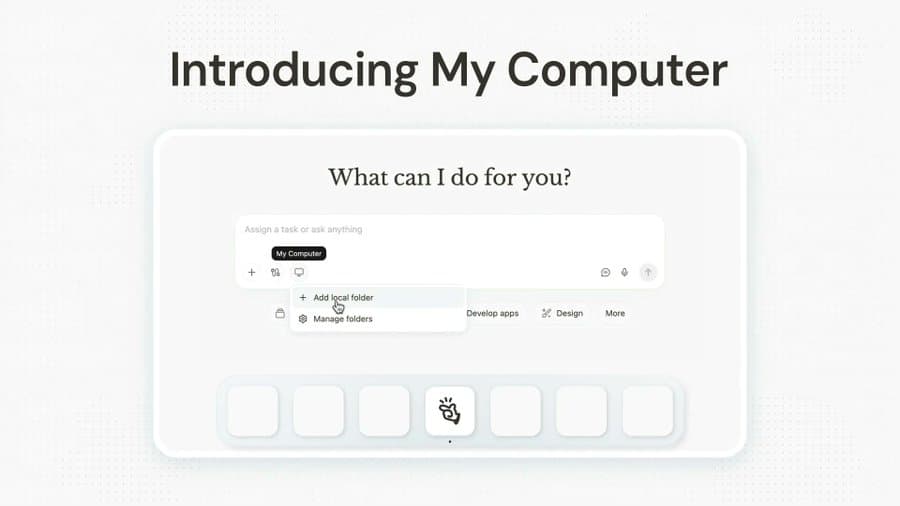
Overview
My Computer extends Manus from its cloud sandbox to a user's own Mac or Windows PC. After the user authorizes local folders, Manus can use terminal commands to read, analyze, edit, organize, and rename files, as well as launch and control local applications.
The capability is designed for work that cannot stay entirely in a cloud agent: organizing local media, processing document batches, working inside a development environment, running scripts, or using a local GPU. Manus also says users can send work from another device while the desktop computer remains on and the Manus app is running.
This access is powerful and high risk. Manus requires command approval and offers Allow Once or Always Allow, but users remain responsible for folder scope, commands, backups, secrets, and application permissions. Start with disposable copies and narrow folders before allowing it near important files or accounts.
Use cases
The strongest fit depends on the job you need the product to complete, not the size of its feature list.
Organize photos, rename invoices, transform documents, or process other repetitive file batches in an approved folder.
Use installed command-line tools and development environments for scripts, websites, apps, tests, and debugging.
Assign work from another device to a computer that is powered on and running Manus Desktop.
Use a local GPU or installed runtimes for work such as model inference, training, or media processing while Manus handles orchestration.
Capabilities
Users choose which local folders Manus can work with rather than granting undifferentiated access by default.
Manus uses command-line instructions to inspect files, edit content, run tools, and automate multi-step local work.
Terminal-based automation can launch and interact with applications and installed development tools.
Each command can be approved once, while Always Allow reduces prompts for a trusted workflow.
Tasks can be sent from another device while the host computer is on and Manus Desktop is running.
My Computer can connect with Manus Projects, Agents, and Scheduled Tasks for recurring local routines.
Process
Step 1
Download Manus Desktop for macOS or Windows and connect it to the Manus account you intend to bill.
Step 2
Make a dedicated folder with copies of non-sensitive files and authorize only that folder for the first task.
Step 3
State the exact output, naming rules, files that must not change, and the command or application boundaries.
Step 4
Use Allow Once while testing. Read commands before execution and avoid broad Always Allow permissions for unfamiliar work.
Step 5
Review diffs or outputs, run tests, and keep backups or version control so unwanted changes can be recovered.
Cost
The desktop app has no separate credit balance. My Computer uses the same Manus credits as the web account, and active agent tasks consume credits based on model and compute usage even when local hardware performs part of the work.
$0/month
Entry access with Manus 1.6 Lite in Agent Mode and daily refresh credits.
From $20/month
Paid individual access starting with 4,000 monthly credits and broader agent models and features.
From $40/month
A larger published credit option for heavier individual usage.
See current quote
Team-oriented administration, collaboration, and commercial terms.
Pricing checked . Check current pricing at the source ↗
Assessment
Compare
The right alternative depends on the specific output, workflow, controls and budget your project requires.
Agents
A competing local agent for working across desktop files, applications, and the web.
Explore Perplexity Personal Computer →Consumer
A more local-first option designed to run on personal NVIDIA hardware.
Explore Portable Computer →Agents
Keeps automation in an always-on cloud environment instead of granting an agent access to a personal computer.
Explore Manus Cloud Computer →Questions
It can use approved local folders and terminal commands to read and edit files, run installed tools, launch applications, automate file work, and use local compute.
Yes. Manus says My Computer is available through the Manus Desktop app for both macOS and Windows.
Manus presents commands for approval and offers Allow Once or Always Allow. Use Allow Once until a workflow is thoroughly understood and constrained.
Yes. Manus says desktop tasks share the central account balance, and agent planning and orchestration consume credits even when local hardware executes commands.
Manus says you can assign tasks from another device as long as the computer is powered on and Manus Desktop is running.
Start with a new folder containing copies of non-sensitive files, use Allow Once, keep backups, inspect every command, and verify outputs before expanding access.
Bottom line
My Computer is one of Manus's most consequential capabilities because it connects agent planning to real local files and tools. It can eliminate substantial repetitive work, but the safest users will treat it like a powerful junior operator: narrowly scoped, supervised, backed up, and never trusted blindly with sensitive or irreversible actions.
Visit My Computer website ↗
Codex Security - OpenAI's new security agent for scanning repos and patching code vulnerabilities

NemoClaw - Nvidia's open-source security and privacy layer for OpenClaw autonomous agents

Luma Agents
Dynamic Workers - Cloudflare's isolate-based sandbox for running AI agent code at scale

Get access to all our AI courses, hundreds of real-world AI use cases, live expert-led workshops, an exclusive network of AI early adopters, and more.
Get unlimited access to all of our current & upcoming industry-specific AI courses for the duration of your subscription.
To keep up with the rapid pace of AI, our team publishes AI implementation guides daily. Our library contains 300+ practical use cases to automate real-world work.
Join weekly, live, interactive sessions with industry leaders who are at the forefront of AI for hands-on implementation guidance and exclusive insights.
Network with an exclusive community of AI-first professionals who are working smarter with AI. Learn how early adopters are using AI in their work and businesses.