Restoring old footage
Upscale, reduce noise and blur, smooth motion, stabilize handheld clips, and test different models on archive, VHS, DVD, or low-resolution sources.
Independent tool overview
VideoProc Converter AI is a Windows and macOS media toolkit that combines local AI enhancement for video, images, and audio with conversion, compression, quick editing, DVD processing, screen recording, and media downloading.
Visit the official VideoProc Converter AI site ↗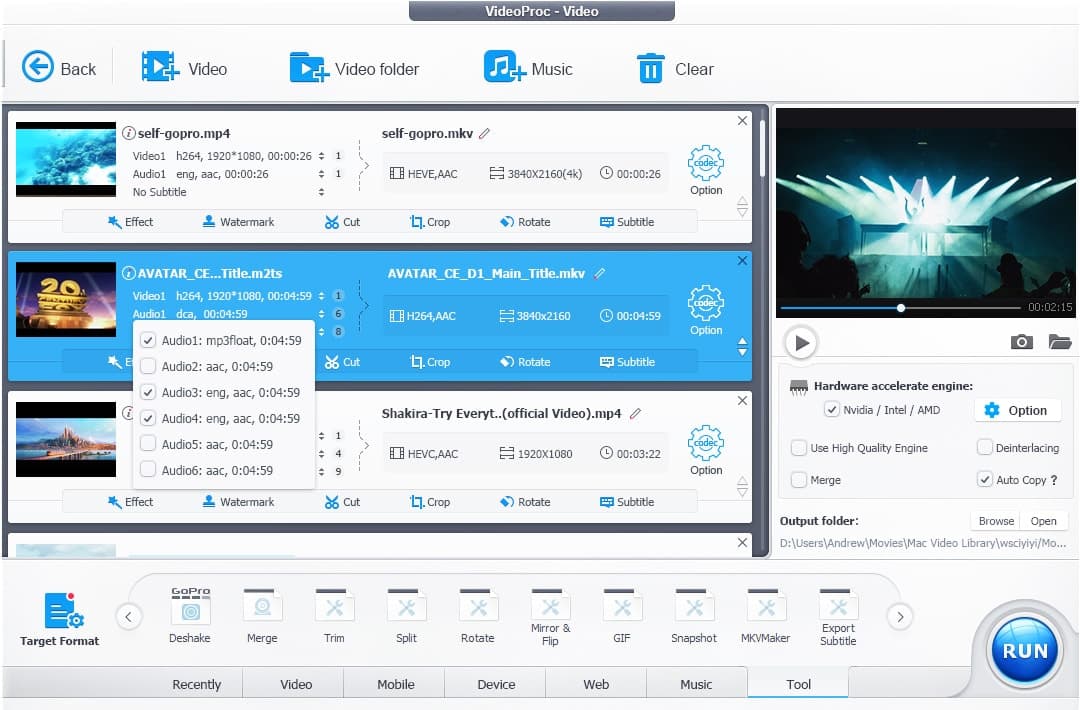
Overview
VideoProc Converter AI is built for processing existing media rather than generating new videos from a prompt. Its AI tools upscale and clean video and images, synthesize intermediate frames, stabilize shaky footage, restore and colorize photos, separate vocals, and suppress background noise.
The same desktop application also handles practical production work: transcoding across hundreds of codecs and formats, shrinking large files, cutting and merging clips, adding subtitles or watermarks, digitizing permitted DVDs, recording a screen or webcam, and downloading media a user is authorized to save.
Most core work is performed on the user’s computer, so speed depends heavily on the CPU, GPU, drivers, source duration, and output resolution. The application can use NVIDIA, Intel, AMD, and Apple silicon acceleration, but some AI models have much stricter hardware requirements than ordinary conversion.
Use cases
The strongest fit depends on the job you need the product to complete, not the size of its feature list.
Upscale, reduce noise and blur, smooth motion, stabilize handheld clips, and test different models on archive, VHS, DVD, or low-resolution sources.
Prepare large camera, phone, screen-recording, or downloaded files for editing, sharing, storage, or device playback.
Combine enhancement, transcoding, recording, downloading, DVD processing, and quick edits without moving every file through separate services.
Use a capable GPU to process many or long files without paying per export or uploading the source to a browser-based enhancer.
Capabilities
Upscales video by 2x, 3x, or 4x while applying model-specific denoising, deblurring, sharpening, and detail reconstruction.
Generates intermediate frames to create smoother playback, higher frame rates, or slow motion up to advertised 120, 240, or 480 FPS.
Analyzes camera movement and corrects shake with selectable precision, quality, speed, and cropping behavior.
Enhances and enlarges images, restores faces, colorizes black-and-white photos, and corrects common portrait imperfections.
Separates vocals or instrumentals and suppresses background sounds such as wind, hiss, hum, and buzz.
Transcodes video and audio across 370-plus codecs and 420-plus conversion targets with detailed resolution, frame-rate, bitrate, and codec controls.
Cuts, crops, splits, merges, rotates, denoises, adds subtitles and watermarks, creates GIFs, and takes snapshots without a full timeline editor.
Captures a full screen or region, webcam, microphone, system audio, and picture-in-picture footage at up to advertised 4K 60 FPS.
Digitizes permitted DVDs, creates backup formats, extracts audio, and downloads supported online video, audio, playlists, or streams.
Process
Step 1
Install the correct Windows or Mac build and test the exact source, model, and output needed before buying.
Step 2
Run the built-in hardware detection and confirm the GPU, driver, Vulkan, OpenCL, DirectML, TensorRT, or Core ML requirements for the chosen AI model.
Step 3
Work from a duplicate or read-only archive copy so an enhancement, transcode, or metadata change never replaces the only source.
Step 4
Start with conversion or one enhancement rather than stacking every AI tool, which can amplify artifacts and processing time.
Step 5
Export a short section containing faces, text, fast motion, low light, cuts, and fine detail before committing to a long render.
Step 6
Evaluate fast versus high-quality modes, scale, frame rate, cropping, codec, bitrate, and hardware engine at full viewing size.
Step 7
Leave enough local storage for source, temporary frames, models, and output, and avoid other GPU-heavy work during the render.
Step 8
Inspect sync, duration, color, faces, text, frame transitions, stabilization crop, compression, and playback on the destination device.
Cost
VideoProc currently advertises a $34.95 introductory annual subscription for up to three computers, a $54.95 one-computer lifetime license, and a $79.95 lifetime family license for up to five computers. The annual plan renews at $39.95 for current subscribers. Sale prices can change, and Windows and Mac licenses are platform-specific.
$0
Evaluation version for checking compatibility, workflow, and output before purchase.
$34.95 first year; $39.95 renewal
One-year access to the full media and AI toolkit on up to three computers.
$54.95 one time
Perpetual full-version license for one Windows computer or one Mac.
$79.95 one time
Perpetual license for a household or small team using three to five computers on one platform.
Pricing checked . Check current pricing at the source ↗
Assessment
Compare
The right alternative depends on the specific output, workflow, controls and budget your project requires.
Content Creator
Topaz Video AI is a more specialized alternative for users prioritizing high-end video enhancement and model-level quality controls.
Explore Topaz Labs Video AI 5 →Content Creator
Nero AI Video Upscaler is a narrower option for users mainly interested in enlarging and improving video rather than a complete media toolbox.
Explore Nero AI Video Upscaler →Content Creator
VEED is better suited to browser-based editing, captions, templates, collaboration, and social publishing without a local desktop render workflow.
Explore VEED →Questions
It is a Windows and Mac desktop application for enhancing video, images, and audio with AI and for converting, compressing, editing, recording, downloading, and digitizing media.
Current advertised U.S. prices are $34.95 for the first subscription year, $54.95 for a one-computer lifetime license, and $79.95 for a lifetime family license covering up to five computers.
VideoProc states that current Premium 365 subscribers renew at $39.95 per year unless they cancel.
VideoProc provides a free trial for testing, but full use and unrestricted exports require a license. Occasional giveaway licenses may be version-limited and are not a permanent standard free plan.
Core conversion, editing, and AI processing run on the local computer. Internet access is still used for registration, periodic license validation, purchases, support, online downloads, and some initial AI model downloads.
Yes. Super Resolution can enlarge supported footage by 2x, 3x, or 4x up to 4K, but the visual result depends on the source and model.
Yes. Frame Interpolation can generate intermediate frames for higher frame rates or slow motion, with advertised targets up to 120, 240, or 480 FPS.
Some conversion, stabilization, and Super Resolution work can use the CPU, but performance may be slow. Windows Frame Interpolation requires a compatible GPU and Vulkan 1.2 or later.
No. VideoProc states that licenses are platform-specific and cannot be shared between Windows and macOS.
It includes useful quick edits, but it is not a substitute for a full timeline editor when a project needs complex compositing, multicam work, advanced color, audio mixing, or team collaboration.
Bottom line
VideoProc Converter AI is a practical value when a creator wants local AI cleanup plus a broad set of conversion and utility tools, particularly with a capable GPU and repeated workloads that make a lifetime license attractive. Its strongest advantage is breadth, not a guarantee that every AI enhancement will look natural. Test a representative clip in the trial, inspect artifacts at full resolution, confirm hardware support, and compare the output with a specialized enhancer before committing an archive or major production.
Visit VideoProc Converter AI website ↗
Get access to all our AI courses, hundreds of real-world AI use cases, live expert-led workshops, an exclusive network of AI early adopters, and more.
Get unlimited access to all of our current & upcoming industry-specific AI courses for the duration of your subscription.
To keep up with the rapid pace of AI, our team publishes AI implementation guides daily. Our library contains 300+ practical use cases to automate real-world work.
Join weekly, live, interactive sessions with industry leaders who are at the forefront of AI for hands-on implementation guidance and exclusive insights.
Network with an exclusive community of AI-first professionals who are working smarter with AI. Learn how early adopters are using AI in their work and businesses.


