Formula assistance
People who know the result they need but want help drafting, explaining, or troubleshooting a Sheets formula.
Independent tool overview
Google Sheets AI is the set of Gemini features built into Google Sheets. It can create and edit spreadsheets, write and repair formulas, analyze selected data, build charts and pivot tables, fill columns, and generate text with =AI() or =Gemini(). It is a strong convenience layer for people already working in Google Workspace, but generated formulas, classifications, charts, and financial conclusions still require human validation.
Visit the official Google Sheets AI site ↗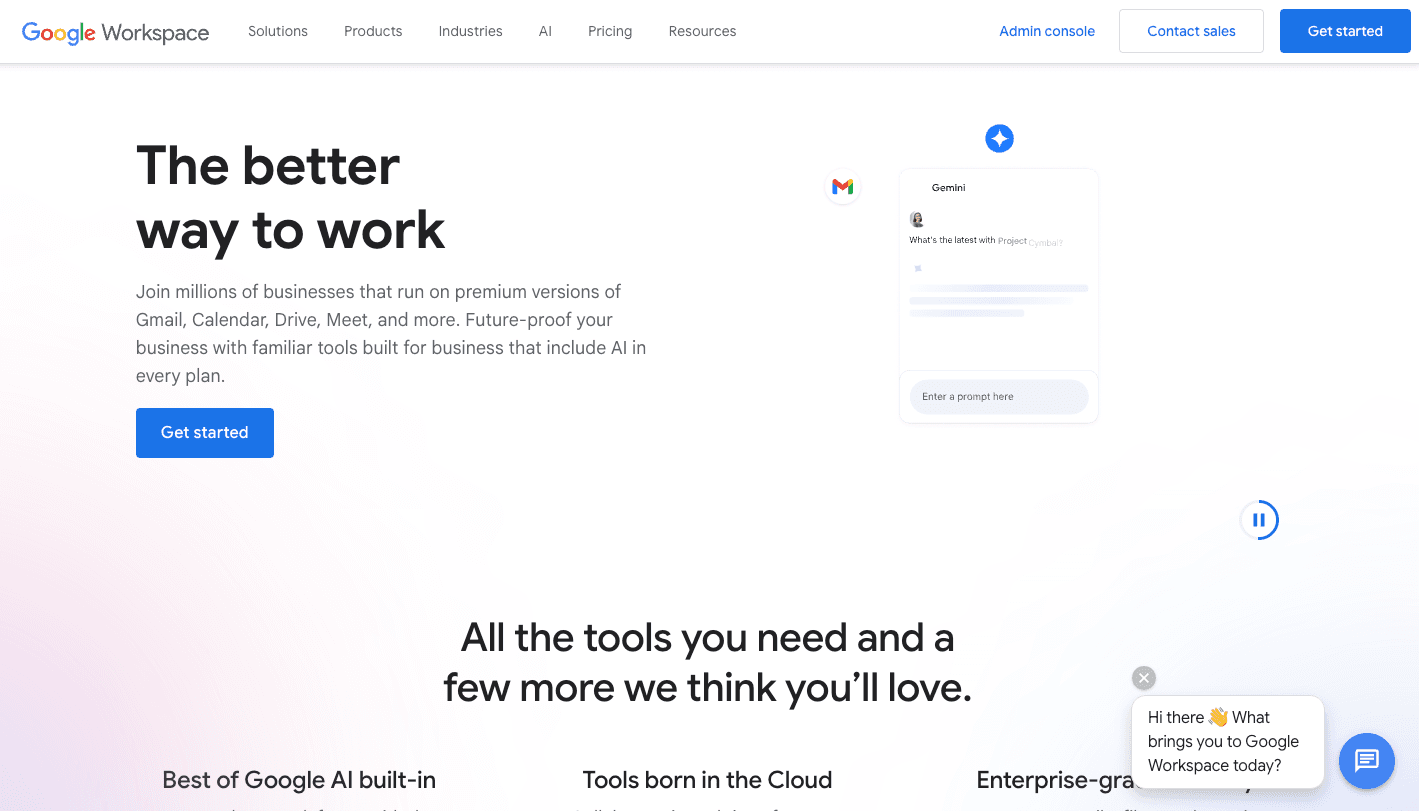
Overview
Google Sheets remains a general-purpose collaborative spreadsheet, while Gemini adds natural-language creation, analysis, and editing. The side panel can build tables, formulas, charts, pivot tables, conditional formatting, dropdowns, filters, filled ranges, summaries, and multi-step spreadsheet changes. A newer Build experience can also plan and create a sheet or complete an end-to-end task on an existing workbook.
The in-cell AI function is separate from ordinary spreadsheet formulas. =AI() and =Gemini() can generate or summarize text, categorize records, analyze sentiment, and use Google Search for current information. Users explicitly generate and insert the result; the resulting cell edit is attributed to the user in version history rather than behaving like a continuously recalculating deterministic formula.
Access depends on the account and plan. As of August 31, 2026, Google lists the Sheets AI function, enhanced Smart Fill, and data analysis for personal Google AI Pro and Ultra plans—not the less expensive AI Plus plan. For business accounts, those Sheets features are listed for Business Standard and Plus and Enterprise Standard and Plus, subject to administrator, language, region, and rollout controls.
Gemini is most useful for drafting formulas, exploring a clean dataset, performing repetitive text classification, creating a first-pass dashboard, and explaining an unfamiliar sheet. It is least safe when users let it overwrite large ranges or treat a plausible formula, web lookup, forecast, or financial summary as verified.
For material decisions, preserve the source data, work in a copy, constrain the selected tabs or ranges, preview every action, inspect analysis steps, reconcile totals, test formulas against known cases, and have an accountable person approve the result. Google itself says not to rely on Gemini for medical, legal, financial, or other professional advice.
Use cases
The strongest fit depends on the job you need the product to complete, not the size of its feature list.
People who know the result they need but want help drafting, explaining, or troubleshooting a Sheets formula.
Analysts and operators summarizing a clean table, identifying possible patterns, and generating questions for a deeper review.
Teams categorizing feedback, extracting themes, creating short summaries, or labeling sentiment across rows with an AI column.
Users creating project trackers, budgets, schedules, dropdowns, checkboxes, formatting, filters, and pivot-table summaries from plain-language instructions.
Workspace users turning selected data into an editable chart, supporting table, and initial narrative without leaving Sheets.
Eligible users bringing relevant Gmail, Drive, or approved third-party connector context into a spreadsheet workflow.
Capabilities
Answers questions about selected sheet data and can create formulas, tables, analyses, charts, summaries, and spreadsheet actions.
Plans a new spreadsheet or an end-to-end edit, asks clarifying questions, and lets the user review a proposed structure before generation.
Drafts formulas from natural-language requirements and can inspect a formula error and propose a fix.
=AI() and =Gemini() generate text, summarize ranges, categorize content, analyze sentiment, and retrieve current information through Google Search.
Extends an AI function through a table column or fills a selected range using examples, nearby context, or a custom prompt.
Detects a relationship between completed and incomplete column pairs and proposes values for the remaining rows.
Explores trends, comparisons, regressions, predictions, and possible takeaways, with analysis steps available for inspection.
Creates an editable chart on a new tab with its generated supporting data; the chart is not linked back to later changes in the original source range.
Can preview and apply conditional formatting, pivot tables, dropdowns, checkboxes, filters, number formats, find-and-replace, row or column changes, and multi-step cleanups.
Can summarize accessible Drive files or Gmail messages, use explicit web search, and query administrator-approved third-party data connectors.
Lets users select specific tabs or tables to reduce irrelevant context in a Gemini request.
Inserted AI-function output appears as a user edit in version history, while side-panel actions can be undone until another change is made.
Process
Step 1
Duplicate the file or import data into a protected staging tab. Keep original exports, timestamps, definitions, and row counts so the work can be reproduced.
Step 2
Standardize headers, dates, currencies, units, blanks, duplicates, categories, and error values. Document the meaning of each field before asking Gemini to interpret it.
Step 3
Select only the relevant tabs, tables, columns, and time period. Remove sensitive fields that the task does not require.
Step 4
Specify the target range, formula behavior, grouping, filters, units, assumptions, desired error handling, and whether the output should be text, a table, pivot table, or chart.
Step 5
Read the action card or generated plan, confirm every affected range, and reject changes that overwrite formulas, hidden logic, validations, protected cells, or manual adjustments.
Step 6
Check absolute and relative references, boundary dates, blanks, errors, duplicates, signs, currencies, and a small set of known answers before filling down.
Step 7
Sample classifications and summaries across common and difficult cases. Record the prompt, regenerate only deliberately, and route uncertain rows to a human.
Step 8
Compare totals with the source system, reproduce key calculations independently, inspect analysis steps, and confirm that exclusions or filters did not change the denominator.
Step 9
Verify axes, units, dates, aggregation, missing values, supporting data, and whether the visual stays current. Generated charts do not automatically follow later changes in the original range.
Step 10
Require an accountable reviewer for payments, forecasts, taxes, hiring, eligibility, health, legal, safety, or other consequential decisions. Do not use Gemini as the approving authority.
Step 11
Protect finalized formulas, retain version history, note the plan and review date, document assumptions, and preserve the approved output separately from ongoing AI experimentation.
Cost
Core Google Sheets is available without a paid AI plan, but the current Gemini features in Sheets require an eligible account. For personal accounts, Google's feature matrix lists Google AI Pro and Ultra for the AI function, enhanced Smart Fill, and data analysis; AI Plus is not listed for those Sheets features. For organizations, the same Sheets AI set is listed on eligible Business and Enterprise Standard/Plus editions. Prices below are current US list prices checked August 31, 2026; introductory offers, taxes, region, billing term, and organization agreements can change the total.
Free for personal use
Core collaborative spreadsheets, formulas, charts, sharing, and 15 GB of account storage, without the paid Gemini-in-Sheets feature set.
$19.99/month in the current US display
The lowest personal Google AI plan currently listed for the Sheets AI function, enhanced Smart Fill, and Gemini data analysis.
From $100/month in Google's May 2026 announcement
Higher-end personal AI access that includes the listed Gemini-in-Sheets features and larger access across Google's AI products.
$14/user/month with annual commitment
The lowest currently listed Business edition with the reviewed Gemini-in-Sheets feature set.
$22/user/month with annual commitment
Adds larger storage and stronger business administration while retaining the Sheets AI features.
Contact sales
Managed enterprise access with eligible Sheets AI features and negotiated security, governance, support, and storage terms.
Pricing checked . Check current pricing at the source ↗
Assessment
Compare
The right alternative depends on the specific output, workflow, controls and budget your project requires.
Data Analysis
Choose Grok for Excel when the organization is standardized on Microsoft Excel and wants natural-language formula and scenario assistance inside that environment.
Explore Grok for Excel →Business Operations
Choose Microsoft Copilot when Excel, Microsoft 365 governance, and broader Office integration matter more than Google Workspace collaboration.
Explore Microsoft Copilot →Data Analysis
Choose Spreadsheet Sage for a lighter conversational helper focused on answering Excel and spreadsheet questions.
Explore Spreadsheet Sage →Business Operations
Choose ChatGPT for flexible file analysis, coding, and data work outside a live spreadsheet, with manual control over what is uploaded and returned.
Explore ChatGPT →Project Management
Choose Claude for long-form explanation and analysis of exported spreadsheet data when direct in-cell editing is not required.
Explore Claude →Questions
It is Google's Gemini feature set inside Sheets, including the Ask Gemini side panel, spreadsheet Build experience, formula help, data analysis, chart and pivot-table creation, enhanced Smart Fill, and the =AI() or =Gemini() cell function.
Yes. The current Build experience can plan and create a new spreadsheet or complete an end-to-end task on an existing one. Review the plan, source selection, affected ranges, formulas, and output before accepting it.
Yes. The side panel can draft formulas from natural language and propose repairs for formula errors. Test the formula against known cases and inspect every range and absolute reference before filling it down.
It generates text from a prompt and optional range. Common uses include summaries, classifications, sentiment labels, text generation, and current-information lookups through Google Search. =Gemini() is an equivalent function name.
Core Sheets is free for personal use, but Google's current eligibility table places the reviewed Sheets AI features on personal Google AI Pro or Ultra and eligible Workspace Business or Enterprise Standard/Plus editions.
Not for the feature set reviewed here. As of August 31, 2026, Google's comparison table lists the Sheets AI function, enhanced Smart Fill, and data analysis for Google AI Pro and Ultra, but not AI Plus.
The lowest personal tier currently listed for these Sheets features is Google AI Pro at $19.99 per month in the US. Pricing, taxes, eligibility, and features vary by country.
The lowest currently listed Business edition with these features is Business Standard at $14 per user per month with an annual commitment. Business Plus is $22 per user per month; Enterprise pricing is negotiated.
Not automatically. Google says the generated chart is linked to a newly created supporting-data tab, not to later changes in the original range. Refresh or rebuild it and verify the source before publishing.
Google says only the first 350 selected cells containing AI functions generate in a batch. Additional short- and long-term usage limits also apply.
Google says it does not use Workspace data to train or improve the underlying generative AI models outside Workspace without permission. Personal accounts, connectors, feedback, and shared or exported data can follow different terms, so verify the exact account and workflow.
Use it only as an assistant. Independently verify formulas, assumptions, units, source data, scenarios, controls, and reconciliations, and require an accountable finance or tax professional before acting on consequential results.
Bottom line
Google Sheets AI is a practical upgrade for teams already living in Workspace: it shortens the path from a plain-language request to a formula, cleaned table, pivot, chart, or first-pass analysis. The AI function is particularly useful for bounded text work across rows. Its biggest weakness is also the danger of spreadsheet AI generally—a polished answer can hide a wrong range, stale chart, invented category, or bad assumption. Use Gemini to accelerate construction and exploration, then use ordinary spreadsheet controls, reconciliations, protected source data, and accountable human review to establish correctness.
Visit Google Sheets AI website ↗
Get access to all our AI courses, hundreds of real-world AI use cases, live expert-led workshops, an exclusive network of AI early adopters, and more.
Get unlimited access to all of our current & upcoming industry-specific AI courses for the duration of your subscription.
To keep up with the rapid pace of AI, our team publishes AI implementation guides daily. Our library contains 300+ practical use cases to automate real-world work.
Join weekly, live, interactive sessions with industry leaders who are at the forefront of AI for hands-on implementation guidance and exclusive insights.
Network with an exclusive community of AI-first professionals who are working smarter with AI. Learn how early adopters are using AI in their work and businesses.


